On this page
Scenario Mode is the fastest on-ramp, but nothing about it is required — every column it drafts is typed and configured exactly the way you'd do it by hand. This page is that hand-built path: no description, no AI tier, just the catalog.
Adding a column#
Click + Column, then Choose type… to open the catalog picker. Search narrows it to
real matches — searching currency finds numeric.currency, shown here with its group
(C.1 / Numeric):
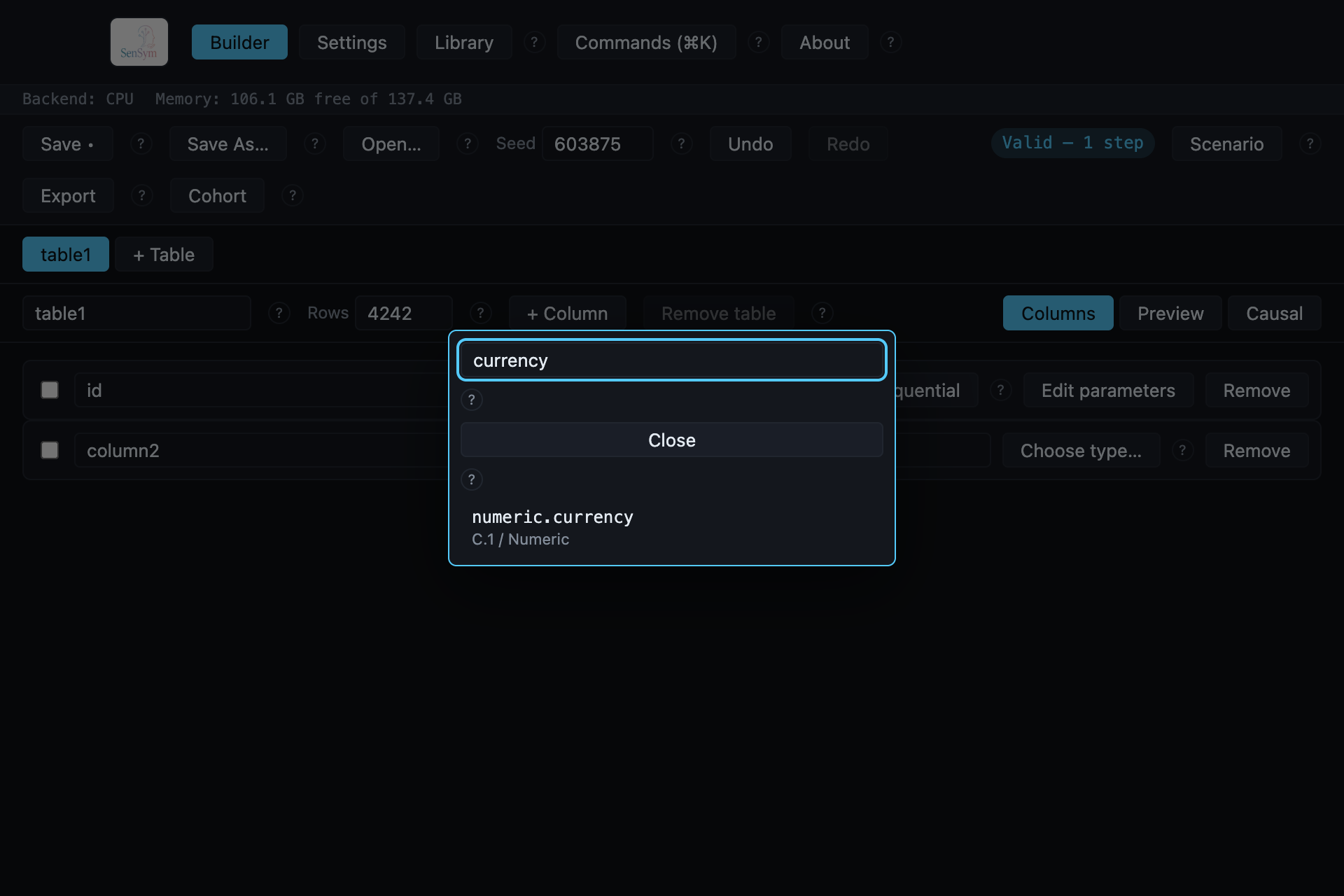
Every result here is a real registered type — the same ones the catalog reference documents in full, with the same ids Scenario Mode itself matches against. Click a result to assign it to the column.
Configuring the distribution#
Picking a type auto-expands the column's own parameter form — no separate step to open it:
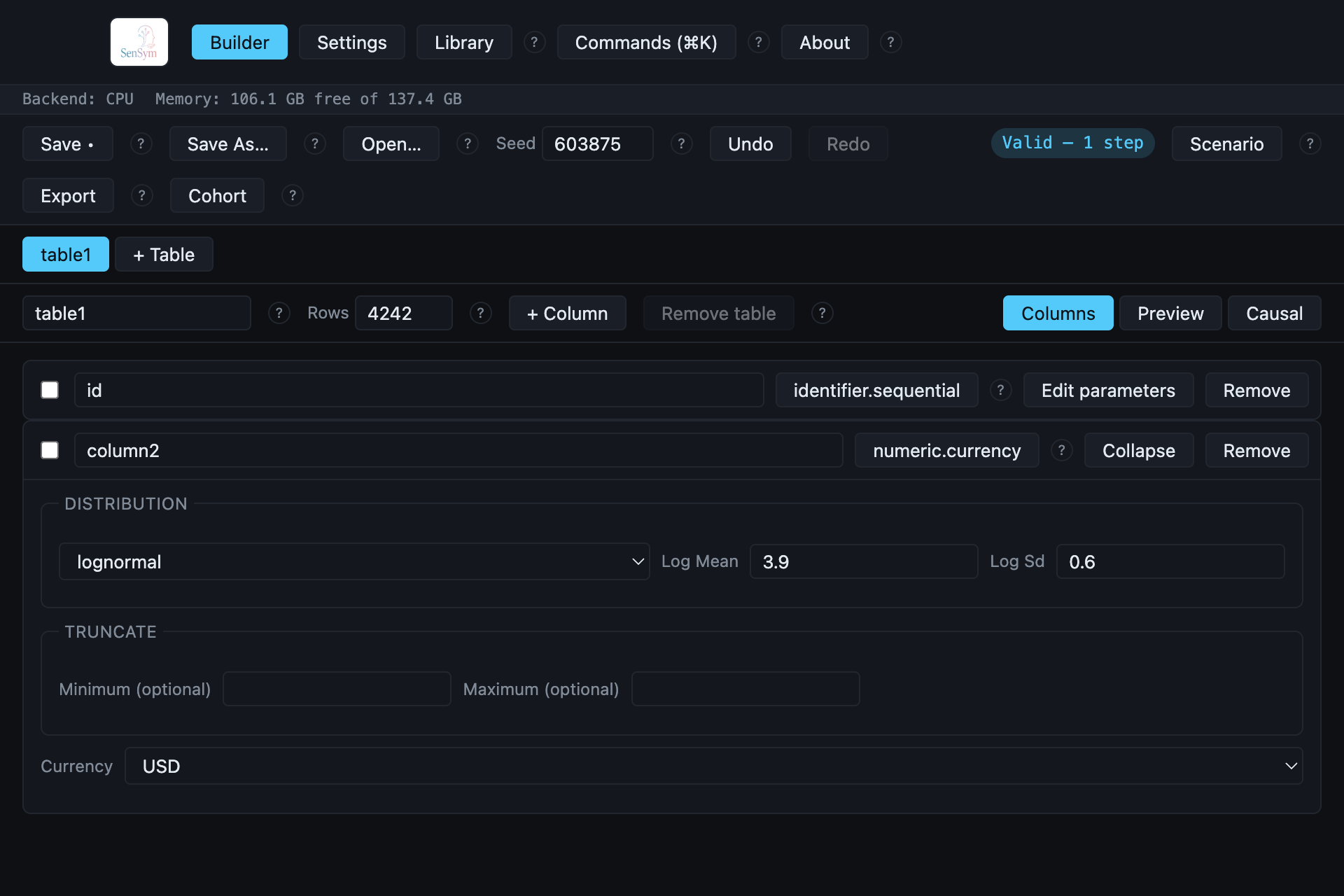
What's shown here is specific to numeric.currency, but the shape is the same for every
numeric type: a distribution family (here lognormal), that family's own real parameters
(Log Mean/Log Sd — a different family shows different fields, e.g. normal shows
Mean/Sd), an optional Truncate range, and any type-specific fields (Currency,
here — a date type would show a range or format instead). These aren't cosmetic defaults;
they're the actual parameters the engine samples from, the same ones the catalog
reference lists under "Example params" for every type.
Click Collapse to close the form once you're done — the column keeps its configuration either way.
Previewing and exporting#
Switch to the Preview tab to see real generated values for the current row count before exporting anything. When it looks right, Export works exactly as Getting started describes — pick a destination and format, and the result is a real file on disk with a data dictionary and provenance record beside it.
Renaming, removing, and bulk edits#
A column's name field (next to its checkbox) is editable directly — there's no separate rename dialog. Selecting more than one column's checkbox opens a bulk toolbar that can retype every selected column at once, useful when several columns should share a distribution family. Remove deletes a column immediately, with the same undo-stack safety net as every other edit in the Builder.