On this page
Describe a dataset in plain language and get a starter recipe back — column names, real registered types, and a row count — that you then edit like any other recipe. Scenario Mode never invents a distribution from nothing: every match comes from the same real type registry the catalog reference is generated from, so a drafted recipe is immediately generatable, not a sketch that needs translating.
The three tiers#
Scenario Mode always answers from exactly one of three tiers, and tells you which one:
| Tier | What it needs | How it matches |
|---|---|---|
| Template | Nothing — no network, no key, no local model | A heuristic keyword matcher over the real catalog. Always available, always offline. |
| Local | A running Ollama server on this machine | A real local LLM call, matched against the same catalog. |
| Cloud | A bring-your-own API key, stored in the OS keychain | A real call to your configured provider. Never used unless you configure it yourself. |
Nothing here ever leaves the machine unless you have explicitly configured and chosen the cloud tier yourself — see below for how each tier is actually set up.
Setting up the three tiers#
The template tier works fully offline with no setup — it's what a fresh install uses. The other two are there if you want them; neither is required, and neither is ever used unless you deliberately configure and choose it. Both live under Settings → AI models:
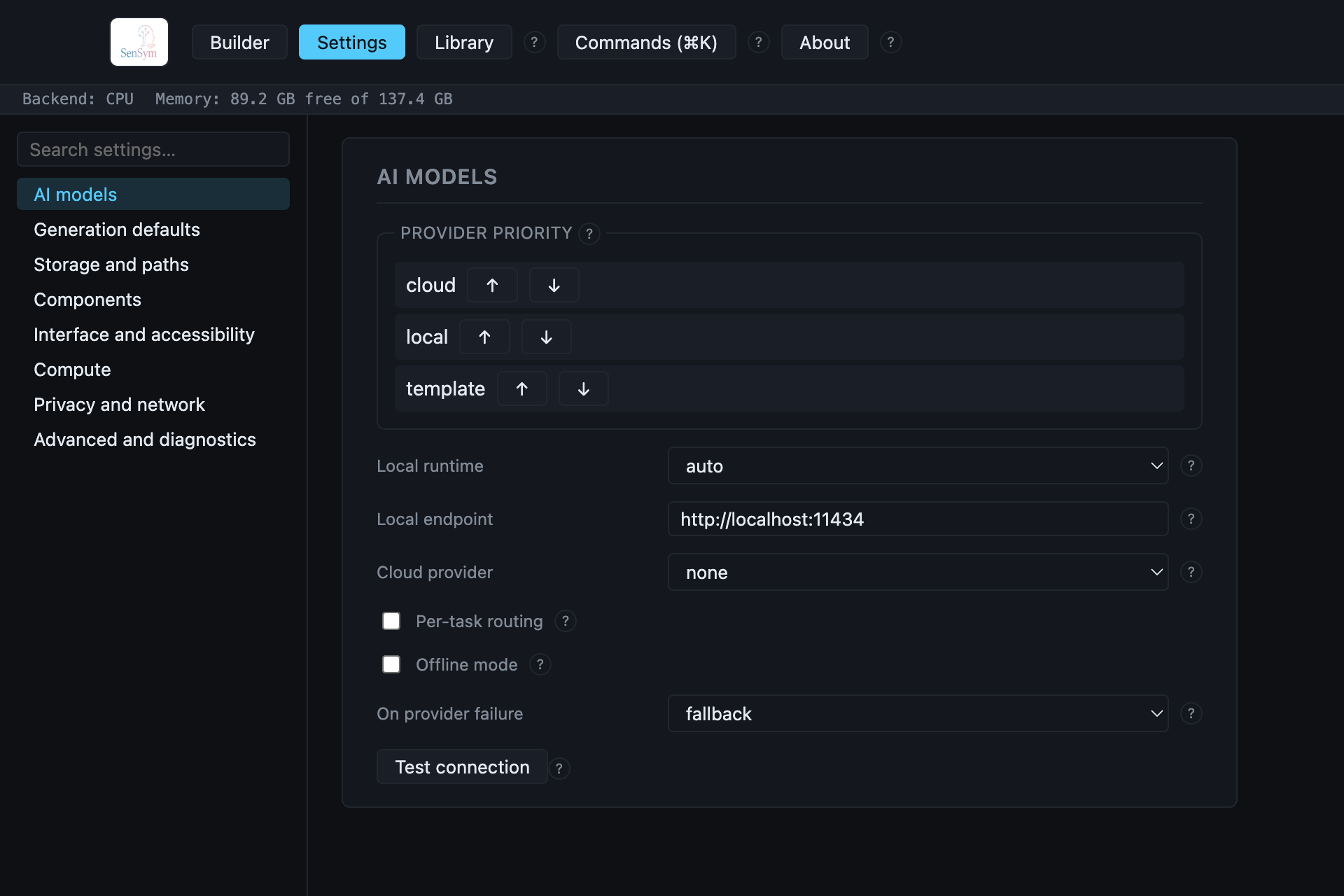
- Local — install Ollama, then pull a model, e.g.
ollama pull llama3.2:3b. Scenario Mode finds a running Ollama server automatically at its default address (localhost:11434, the Local endpoint field above; change it if yours runs elsewhere). - Cloud — pick a Cloud provider, then bring your own API key from that provider. The key field itself lives in this same panel (below the fields shown here) — it's stored in your OS keychain, never written to a config file, and nothing is sent anywhere until you also flip the consent toggle next to it.
Provider priority is the order Scenario Mode tries tiers in when more than one is eligible
— drag or use the arrows to reorder it. On provider failure controls what happens if your
chosen tier is eligible but fails mid-request: fallback always drops straight to the template
tier (never to another network-backed one), and stop surfaces the real failure instead of
silently returning a different answer than the one you asked for. Test connection makes one
real request against your current configuration and reports which tier actually answered.
Drafting a recipe#
Click Scenario, describe the columns you want, and set a row count:
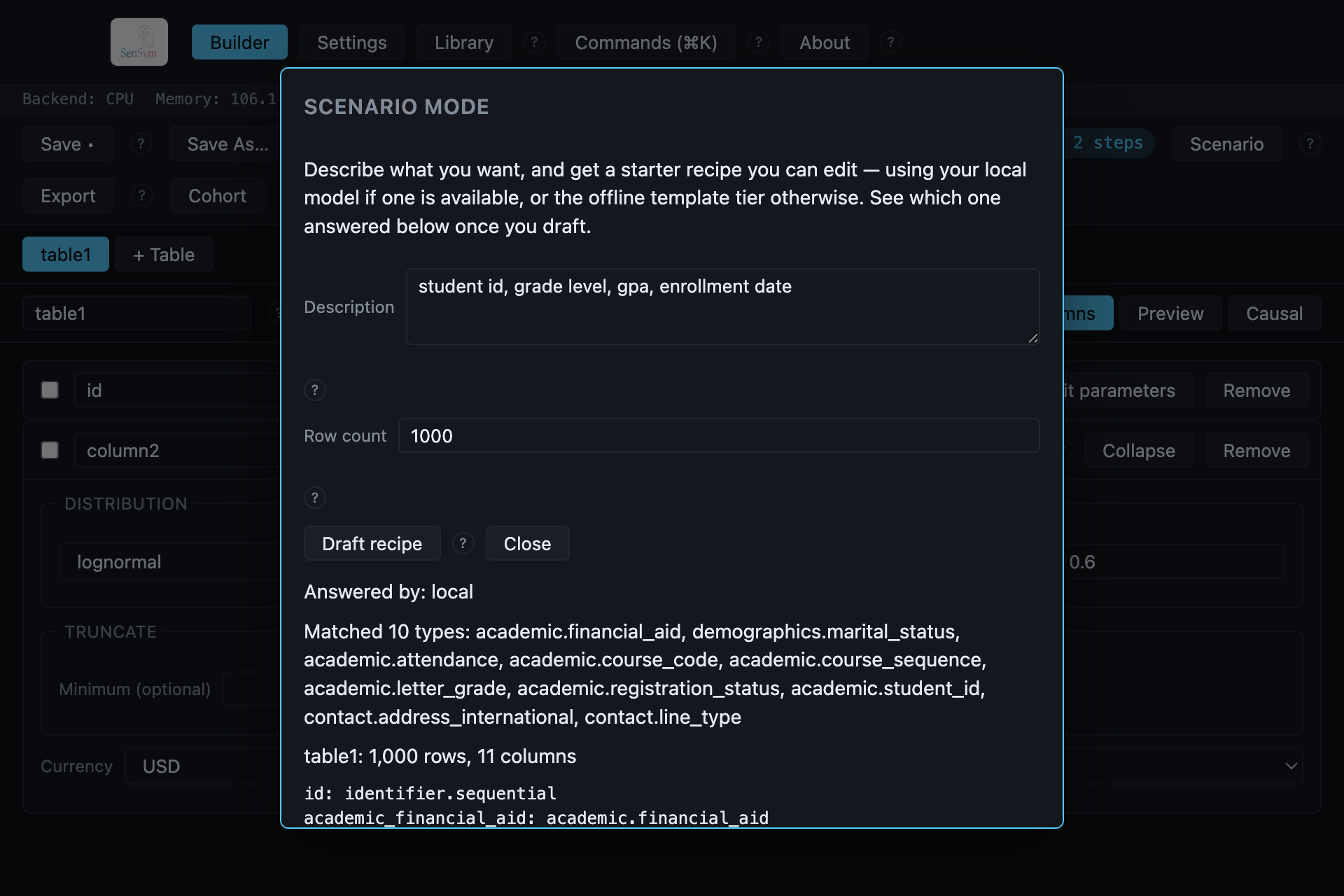
This particular draft was answered by the local tier — this machine had a real Ollama
server running. Matched 10 types lists the real catalog ids the description resolved to,
followed by a per-column breakdown of exactly what the drafted recipe contains. Nothing is
applied yet.
Draft recipe can be run again with the same description to see a different draft (the match is not required to be deterministic across tiers), and the description itself can be edited and re-drafted as many times as you like before applying anything.
Applying a draft#
Apply — replaces the current recipe does exactly what it says: it is a destructive operation on the working recipe, gated behind a confirmation dialog first. Undo still works afterwards — applying a draft is one more entry on the same undo stack every other edit uses, not a special case.
After applying#
The applied recipe behaves like any hand-built one: columns can be retyped, rows adjusted, a causal model declared, and it can be saved to a file or exported immediately.